

In some previous posts, I spoke about how I have been evolving my process of tracking student progress without using points. It’s not easy, and I expect my systems to continue to evolve for the next few years (and maybe for the rest of my career). But near the end of last year, I landed on something that worked pretty well; I intend to use the overall system this year, so I wanted to share what I am doing before we all go back to school. 😱
The digital assessment notebook. It sounds fancy, but it’s really just a Google slideshow that is my hyperlink homebase. One of my biggest take-aways last year was that I NEED to see each student’s complete body of work when I am determining a quarter grade. In theory, they are supposed to be providing this in their quarterly reflections, but I cannot count on all of them to do this as thoroughly as I need it to be done, so I keep my own records.
It starts with the Google slideshow. This is homebase.
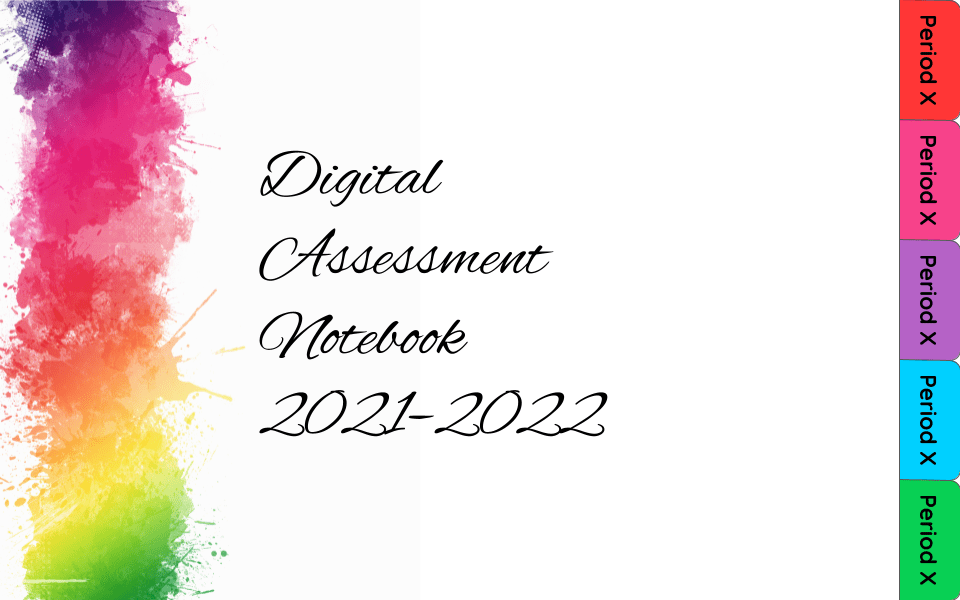
The tabs on the right-hand side each link to a slide with one class roster, just like a class page in a gradebook.
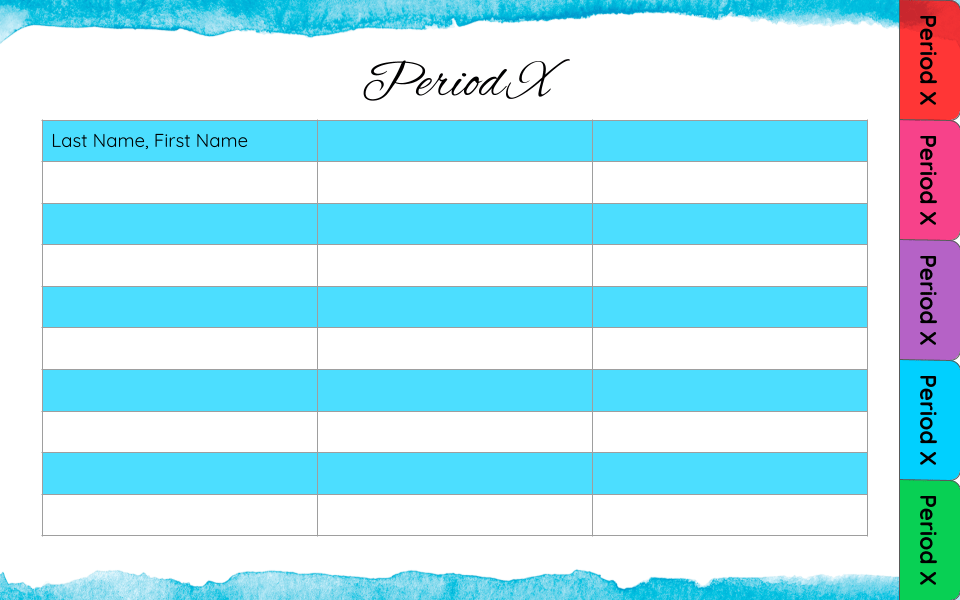
Once I have my rosters, I will enter the student’s names alphabetically by last name. I will also replace all the X’s with the period number for each class.
So far, so easy. Now the real fun begins. Once school has started and my rosters are unlikely to change (much), I will have my students help me keep track of their progress. First, I will share a student data tracker Google doc with them on Google Classroom; I will post this as an assignment so that I can make a copy for each student. Then, I will go through ALL of those files and hyperlink them to the corresponding student’s name in the Google slideshow “gradebook.” (I know this sounds time consuming, and it is. But this is definitely one of those “waste time now to save time later” moves. Trust me on this one.)
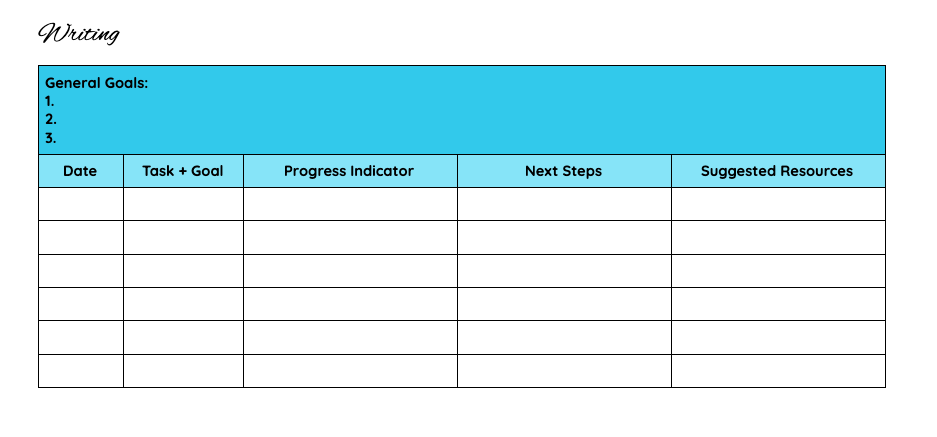
Here’s the part some of you may be uncomfortable with: BOTH my students and I will have editing access to this doc. Why? Because it makes my life easier. Within each student’s doc, I will want to hyperlink ALL their work. This saves me time and mental bandwidth when I am reading, conferencing, and feedbacking. (That should be a verb, so I just made it one.) But it takes FOREVER to hyperlink each assignment for each student. So I ask them to do it. I will give them lots of direct instruction on how to do this, including a Standard Operating Procedures handout and video for using this document. (Ask nicely and I’ll share it with you after I make it.)
I will overemphasize that they are not permitted to change anything that I write. And I will KNOW. (Thanks version history. 😉) I will also be copying and pasting some elements from this doc into my learning management system so that administrators and parents can see it—and the information will need to match.
For those of you who need to see and do to learn best, I invite you to check out my YouTube tutorial on setting up the digital gradebook. If you would like to work from the template I created, you can snag a FREE copy from my Teachers Pay Teachers store. I just ask that if you end up using it that you leave me a rating and review on TpT.
The pointless movement is growing, and plenty of companies are taking advantage of the opportunity to create software that will help teachers manage standards-based grading. But for now, I need something flexible and free. So I DIY.
Sometime in the next few weeks, I will post about how I intend to introduce my “pointless” system this year, including how I will be determining quarter grades (because my process will be a little different from what I did last year).
Until then, enjoy what’s left of your summer!
 Ms. Hastings
Hi Jen! I am so glad I found your blog–thank you for all you’ve already taught me!
I have a specific question about linking student writing to the digital assessment notebook. If you have students link their work in progress as time passes, won’t the doc always show up as its latest iteration even if it’s the first link chronologically? How do you manage it so that each link shows a distinct stage in the writing?
Thanks–
Deb
LikeLike
That’s a great question. I make my students revise in suggestion mode so that I can see any changes they’ve made. This can get unwieldy if they make a lot of changes, so sometimes I let them accept previous revisions if they are doing more than three drafts. But the changes also show time stamps, which helps with that.
If they have completely new drafts, I just label them with a version number and include it under the previous version.
Does that help?
LikeLike